

Digital forms and PDFs should be usable by everyone, even if someone has a disability. This ensures that everyone can easily use online information. People who cannot see, hear or think well benefit greatly from accessible documents. Digital documents should be easy to understand. They should also work well with tools such as screen readers. When creating a PDF, you should think about how accessible it is.
When making a document accessible, there are a few important things to think about.
- First check your pdf with PAC 2024. Download desktop version (Windows only)
- Mac users check your pdf (10 mb maximum size) on this website.
Evaluate and recover the results in the source document, e.g. Word or InDesign. Use my tips to accomplish accessibility.
Explanation failures PAC 2024 in clear language
When making a document accessible, there are a few important things to consider:
First, check your PDF against the Matterhorn Protocol criteria using your favorite PDF checker. Evaluate and correct the results in the source document, using your preferred editor. Use my tips to achieve accessibility.
Study the answer based on the failures I described in clear languages in B1 illustrated with a clear example.
Pdf Syntax
Use the Tagged PDF Best Practice Guide: Syntax for developers. ISO 14289-1 (PDF/UA). The right pdf generator that has the right pdf syntax. Some pdf generators are in basic not pdf-UA and WCAG compliant. Adobe pdf engine 1.7 (as of June 28, 2025 this is engine 2.0) Don’t use: Export as PDF or save document as Microsoft PDF Alternatives. For actual generators read the report on this website. In follow up I have tested more pdf generators; One test is published on my website.
Fonts

Embed correct fonts. Identity H or P, Composite fonts, TrueType fonts (pay attention to the ligatures when designing documents. In some fonts it appears with the letter I and T next to eachother. For the design in your corporate identity, use a font family that consists of normal (Roman), bold, semibold, italic, light italic etc. Preferably do not use a so-called artificial bold or artificial italic as the Word layout bar indicates. When using TrueType fonts you can add artificial bold or italic.
Best practices
I have always learned bold and italic are not read by a screen reader software. Preferable is use of Font family with font names like roman, bold, italic etcetera. I tested in NVDA but hear only text spoken but with both fonts not pronounced as font type bold or italic. Same occurs for the <b> and <italic> in html.
In compare to press matter:
Artificial bold and italic will also not appear when the document is prepared for press and will be printed unless you give a text a bit of skew for italic and stroke for bold. Fonts with artificial bold and italic will show up in printed matter as a font with very low resolution or fonts are missing or the image is low rasterized pixels. See this website with examples how not to. Dfonts can be a big problem, these are the Truetype fonts that come with your Apple computer. Dfonts can conflict with Postscript fonts of the same name. To avoid font issues and legal gray areas, you should convert all fonts to outlines before submitting your document. More information how to legally use fonts take a look at this video. Webaim describes what will read in screenreader software. artificial bold and artificial italic as shown in the editor bar will not emphasized in screenreader software. https://webaim.org/techniques/screenreader/
Structure according the PDF fundamentals
Accessible PDF depends on developers and users sharing a common understanding of Tagged PDF. In this resource, each PDF Technique page provides a minimal example demonstrating either a single technique or an example of a failure. We provide some background information about these Techniques, including a quick introduction to logical structure, Tagged PDF and accessibility support. There’s also a glossary of terms specific to accessible PDF. For all users, it’s important to understand what these Techniques are and are not.
Accessible links and notes
Make sure a hyperlink or foot- or endnotes is tagged and has a descriptive ALT-text. When adding this in an editor the tag will be enriched with a Link-OBJR tag. This tag is necessy for screenreader users.
Alt descriptions for images and links.
Make sure an image is tagged as <figure></figure> and provided with descriptive ALT text. If an image is not functional, define the image as ARTEFACT. Pay attention to how you align an image in a document. In the PAC checker you will otherwise get an error message that the bounding box is not aligned correctly.
Quality
Validity of the document title
If a title in the document has been changed, make sure it is also changed in the document properties.
Artifact in body of page
When a title is placed as an image, give the image a property of real content.
Tagged text consists of white space only
Solution for remove Whitespaces in pdf
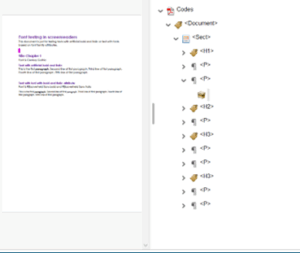
The object under the selected <p> tag is empty (representing) a blank line. Click right on the red circled object and mark as artifact and remove the empty tag.
See also https://helpx.adobe.com/nl/indesign/using/editing-text.html The object should be tagged as artifact (right mouse button è change code as artifact option page and later the <p> tag should be removed with right mouse button è empty code. The pdf is then fully pdf-UA.
Generic software solution
When using styles in a document editor use existing styles or add the based one your brand styles, off course with accessible colours. Set e.g. the H1 tag based on no distance if this is available in your editor.
Permanent solution in Adobe InDesign
Use fixed space is ^ or ^w. GREP \s Or is (Windows: Ctrl Alt X / Mac: Ctrl Apple key X). Other another best practice is ^[ \t]+(?=\r)
Permanent solution in Word
The solution is as follows: Go to Start ==> Styles and change for Styles for example Heading 1 style based on No distance. Extra notice: after an image also no styles option. Tagged content outside the page boundaries This concerns, for example, elements on the clipboard in InDesign or comments in Word.
Presence of headings
PDF-UA prohibits skip heading levels. Why? Screen readers can’t read the text properly.
Readability and search friendly
XMP-metadata
Make sure that the file information, title, author, date, version, and keywords are filled in.
PDF/ UA Identifier
After all error messages have been solved after checking in PAC 2024 then in Actobat vzv PDF/UA tag.
Title in XMP-metadata
A descriptive title of the document displayed in the document properties.
Document settings
Display of the document title in the title bar
The document properties must include the document title. Tag <DocumentTitle>. Go to Document properties, view on open, choose document title instead of file name. “In Acrobat Pro: Open the Content pane > Right-click the root > Select Edit Document Catalog > Expand the Document Catalog > Expand the Mark Info dictionary > If the Suspects Key is incorrectly set to True, either set to False or delete it.
Generic solution
Every editor has a file info function where you can add metadata for your document. If you use private data, you have to encrypt or move these data, More information you can read in this article.
Add metadata in editor of your choice
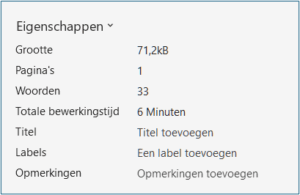
Go to File ==> Info
Suspects-input
“Suspects entry has a value of true.
Reading order has been properly determined, but the Suspects key indicates otherwise.”
In Acrobat Pro: Open the Content pane > Right-click the root > Select Edit Document Catalog > Expand the Document Catalog > Expand the Mark Info dictionary > If the Suspects Key is incorrectly set to True, either set it to False or delete it.
This can be a false positive in older pdf documents. But always check if your meta title is still the actual text. Note: don’t use example or template as meta title.
Best practices:
I found this in a Pages document (newsletter) created with Quartz PDF, macOS 13.3″
Best practices Notes and references
Coming soon in part 2.
Geef een reactie